


This article provides instructions on how to match deposits in QuickBooks Online.
Has the bank account in QuickBooks Online been linked to an actual bank account?
If No:
Deposits will need to be created in Accounting Link or QuickBooks.
If Yes:
Deposits will come into QuickBooks Online in the Banking Transactions section of QuickBooks. These deposit transactions come in from the linked bank account to be reconciled in QuickBooks Online similar to reconciling a bank statement. When using Accounting Link, these deposits will normally be matched to the deposits created in Accounting Link Desktop or QuickBooks. The deposits created in Accounting Link Desktop or QuickBooks are made up of the payments entered into the Shop Management System and integrated with QuickBooks via Accounting Link. (NOTE: The deposits in the Banking Transaction section of QuickBooks should not normally be categorized or added.)
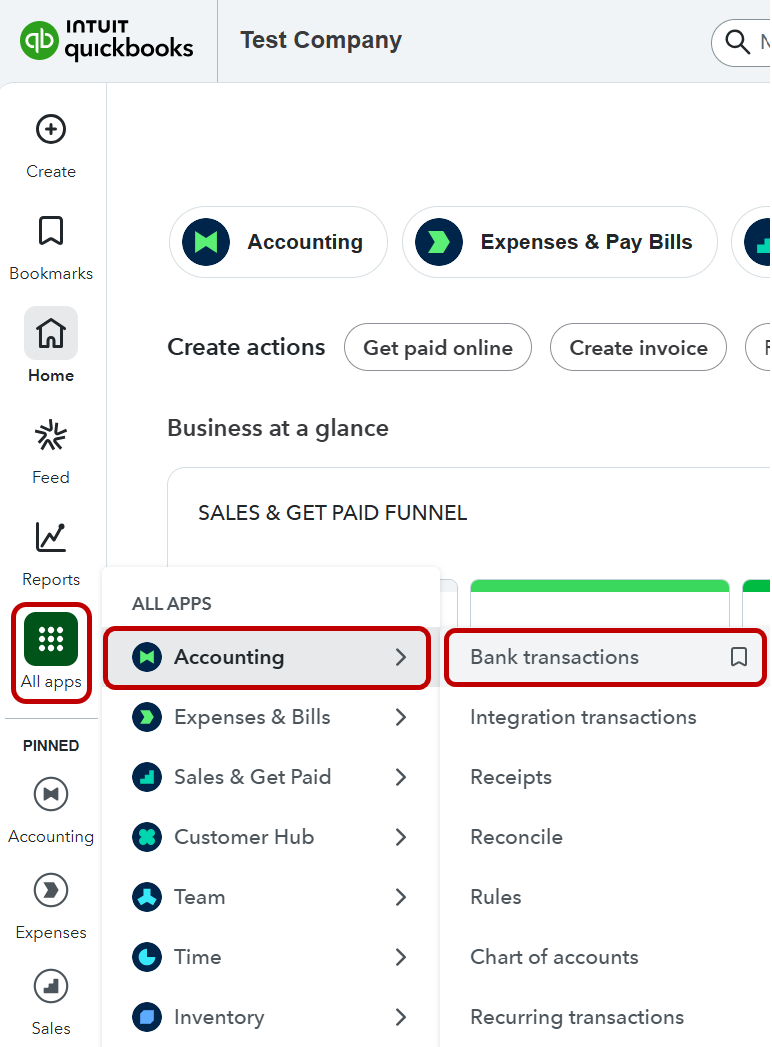
STEP 1: In QuickBooks Online, navigate to Bank Transactions. Click on All Apps. Expand the option for Accounting. Click on Bank Transactions.
STEP 2: On the Bank Transactions screen, click on the desired bank account to review transactions for that account. Below the bank accounts, the 'For review' ('Pending') tab should be highlighted. If a different tab is highlighted, click on the 'For review' ('Pending') tab.
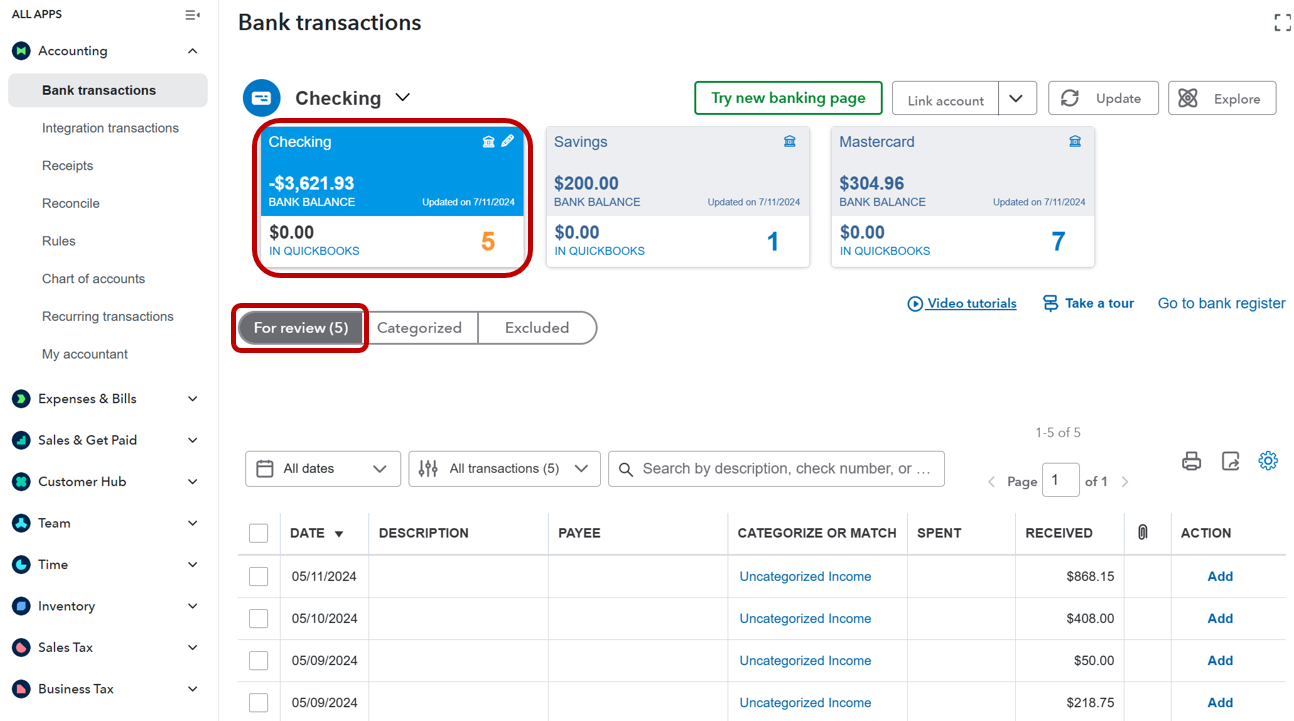
The Bank Transactions feature in QuickBooks Online allows the user to reconcile bank activity with transactions in QuickBooks. QuickBooks will recommend categories for the transactions. QuickBooks will also recommend matches for transactions if potential matches can be found in QuickBooks. As the transactions are added or matched in the Bank Transactions feature, the transactions will move from the list under 'For Review' ('Pending') to the list under 'Categorized' ('Posted'). Payment transactions from Accounting Link, should be posted into deposit transactions that match the amount of the deposit showing in the Bank Transaction page in QuickBooks.
STEP 3: Find a deposit transaction in the Bank Transactions feature which needs to be matched. Make note of the date, payment type, and deposit amount for the transaction. (NOTE: If deposits are created in Accounting Link Desktop, create the matching deposit in Accounting Link Desktop and skip to STEP 10 below.)
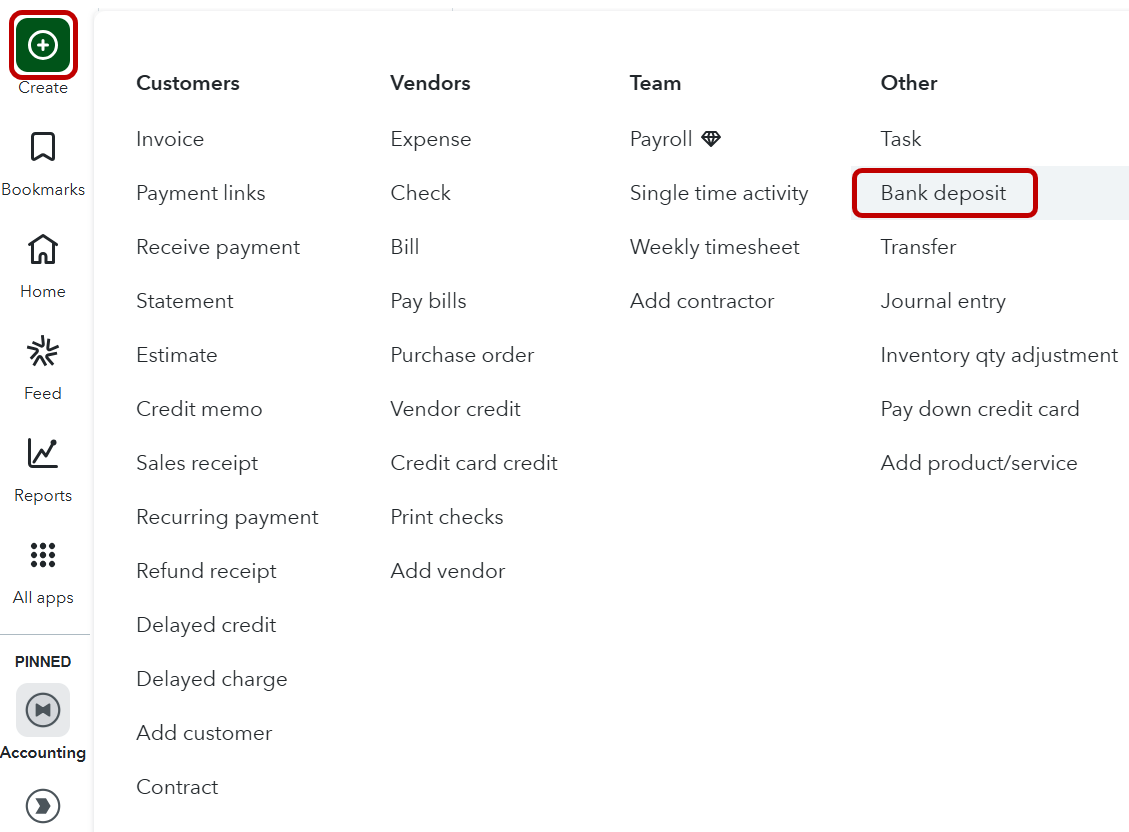
STEP 4: Click on the 'Create' icon in the upper left corner of QuickBooks Online. Under the right header 'Other', select 'Bank deposit'.
STEP 5: The 'Bank Deposit' screen will display. The 'Bank Deposit' screen lists all transactions positive and negative in the Undeposited Funds account in QuickBooks waiting to be included in a deposit.
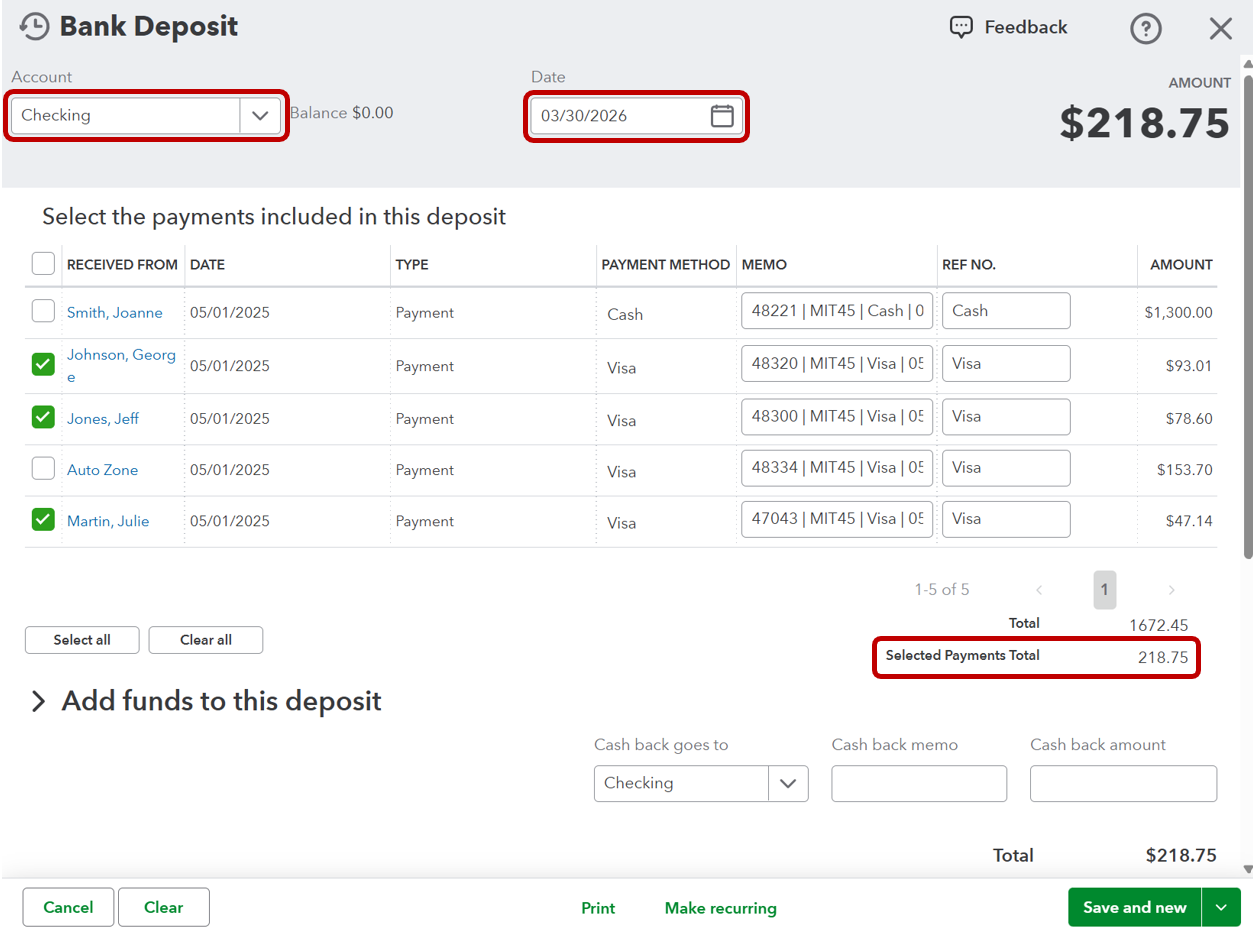
STEP 6: Select the payments to be included in the deposit by checking the box to the left of the payment. When selecting payments, keeping in mind what payment types are normally deposited into the bank together. For example, cash and check payments are not normally deposited with credit card payments. The total amount of the selected payments will show below the list of payments.
STEP 7: At the top of the Bank Deposit window, verify the bank account for the deposit and the date of the deposit are correct. Adjust the account and/or date as needed.
STEP 8: Sometimes adjustments may need to be made to a deposit to make the total for the deposit match the amount deposited into the bank. For example, credit card fees deducted from the credit card payments received, rounding of the cash taken to the bank, purchase of COD parts using cash from the till, or using money from the till to pay any other expense. Additional money may also need to be added to the deposit. For example, refund check or rebate check included in the deposit. Positive or negative adjustments to a deposit can be made under the 'Add founds to this deposit' header.
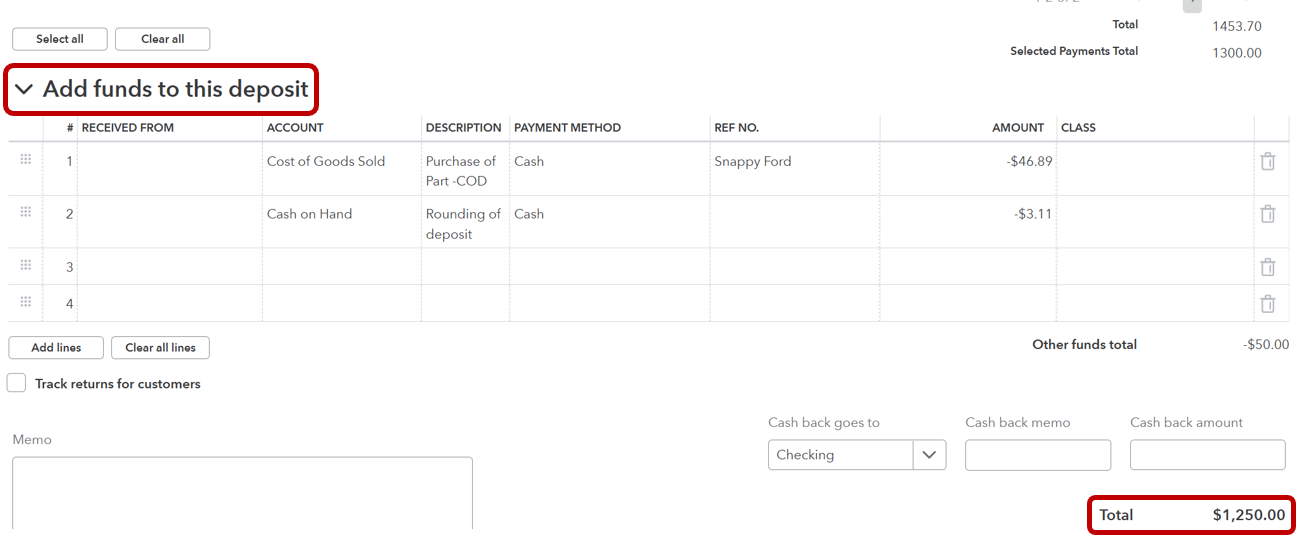
- Received From - Select the desired name from the drop-down list or leave this field blank.
- Account - Select the account for the adjustment. If unsure, check with your bookkeeper or accountant. Below are some examples:
- Credit Card Fees - Merchant Account Services
- Rounding of cash - Petty Cash, Cash on Hand, or Cash
- Cash used to purchase a part - Inventory or Cost of Goods Sold
- Cash used to buy lunch - Meals and Entertainment
- Refund Check - Inventory or Cost of Goods Sold
- Rebate Check - Inventory or Cost of Goods Sold
- Credit Card Fees - Merchant Account Services
- Description - Enter the description for the adjustment. This field can be left blank, but not recommended.
- Payment Method - Select the payment method from the list or leave the field blank.
- Ref No. - Enter the reference number for the adjustment or leave the field blank.
- Amount - Enter the amount of the adjustment. The amount can be a positive or negative number.
- Enter additional adjustment lines as needed following the steps above.
STEP 9: Verify the deposit total matches the amount previous noted for the deposit transaction on the Bank Transactions screen. The deposit total is displayed at the top and the bottom of the Bank Deposits window. Once everything looks correct for the deposit, click the green 'Save and Close' button in the bottom right corner of the screen.
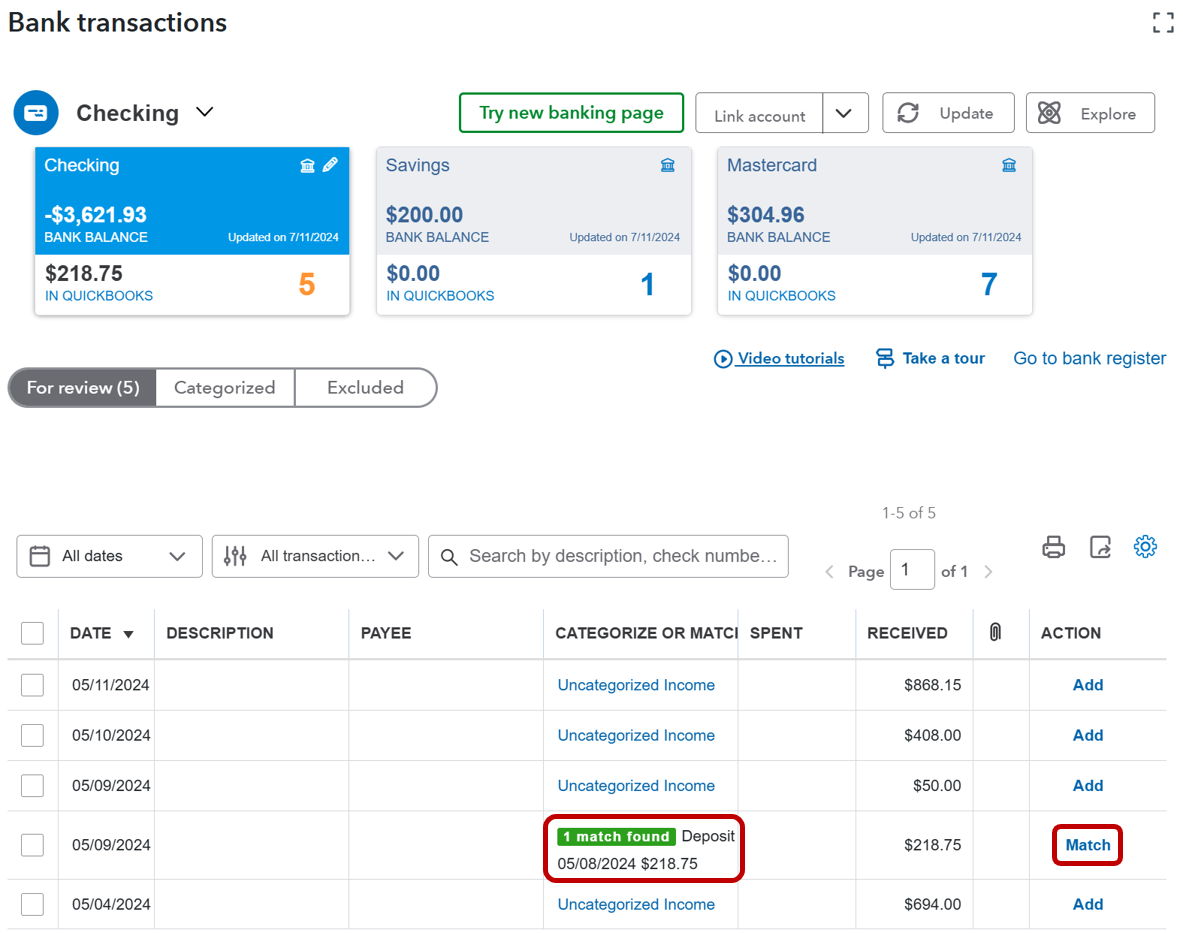
STEP 10: The Bank Deposit window will close and Bank Transaction screen should be displayed. Locate the Deposit Transaction in the list again. QuickBooks will attempt to find matching transactions and make suggestions. QuickBooks matches and suggestions will match the amount exactly. If QuickBooks has found a match, verify the suggested match is the deposit saved in STEP 9 above.
- If the match is the deposit from STEP 9, click 'Match' in the action column for the Bank Transaction.
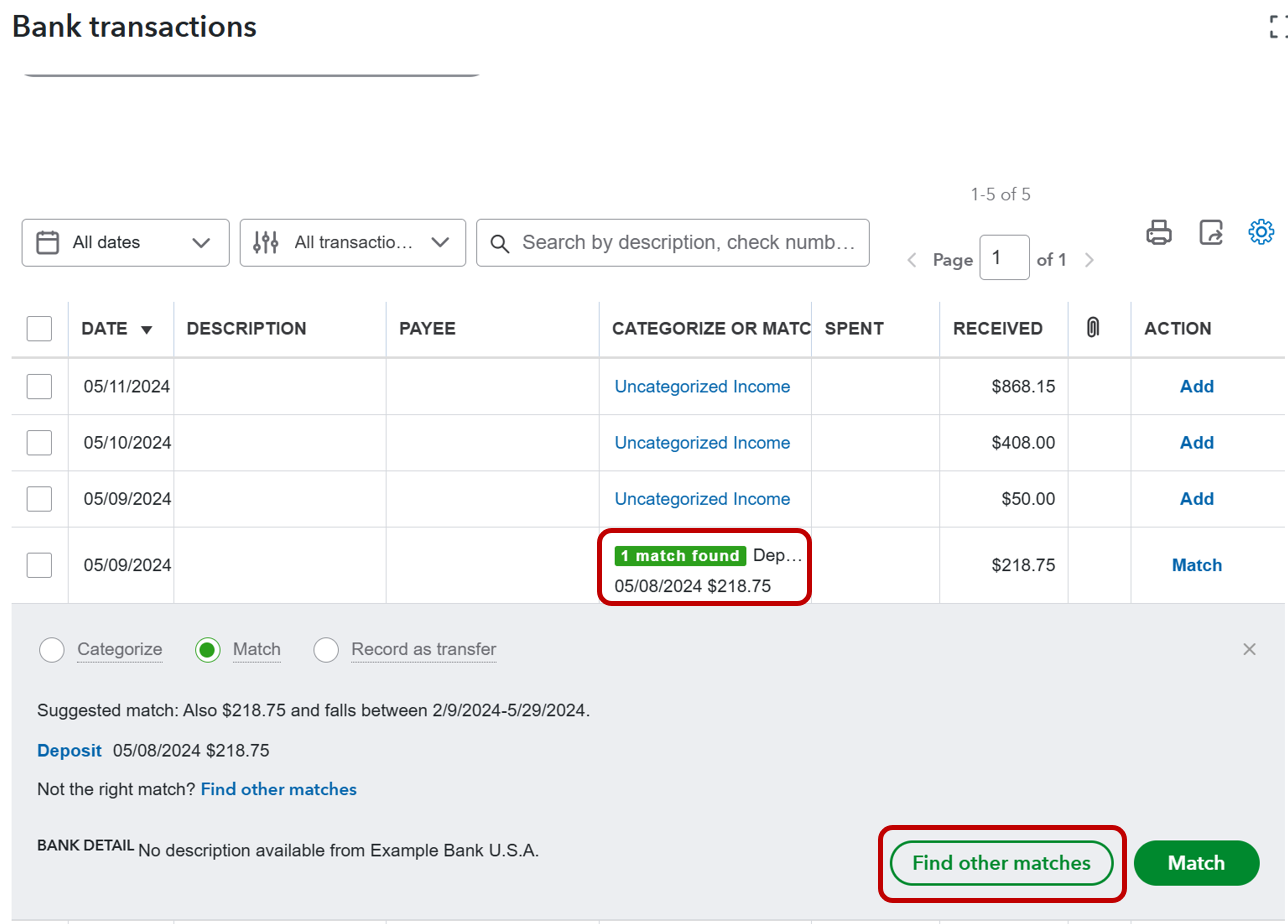
- If the match is NOT the deposit from STEP 9, click on the transaction to display more details. Click on 'Find other matches'. The Find Other Matches will display. Find the deposit created in STEP 9 in the list and check the box in the left column for the deposit. The difference amount in the lower right corner of the screen should be $0.00. Click the green 'Match' button in the lower right corner of the screen.
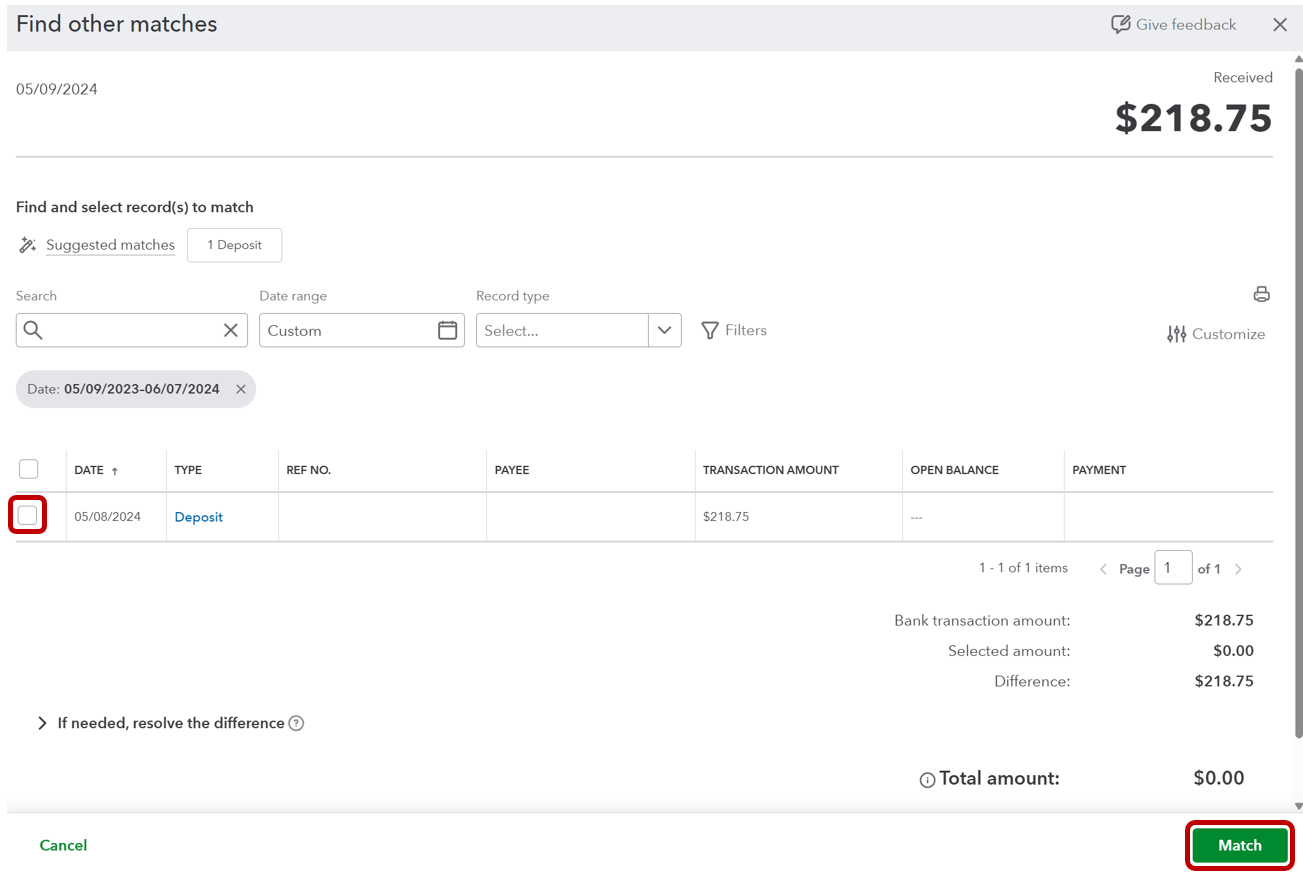
When Match is clicked, QuickBooks will move the Deposit Transaction from the 'For Review' ('Pending') tab to the 'Categorized' ('Posted') tab. QuickBooks will also mark the transaction in the bank register as reconciled.
STEP 11: Repeat these steps for each deposit transaction listed under 'For Review' ('Pending') in Bank Transactions. If there are deposit transactions in the list that do not include payments entered into the Shop Management System, these deposits can be categorized or matched as needed.

