


This article includes examples of Profit and Loss reports in QuickBooks using data sent through Accounting Link.
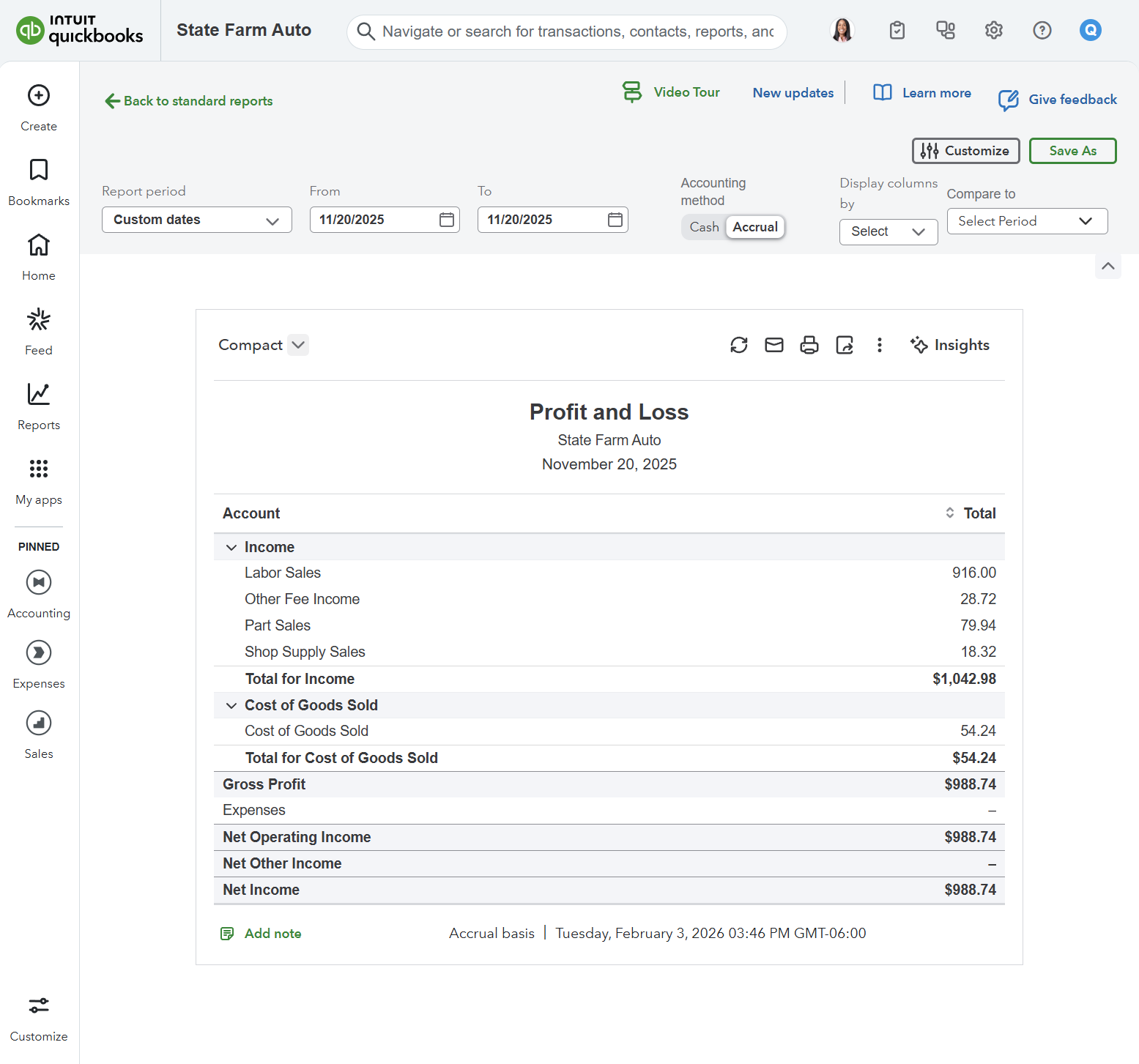
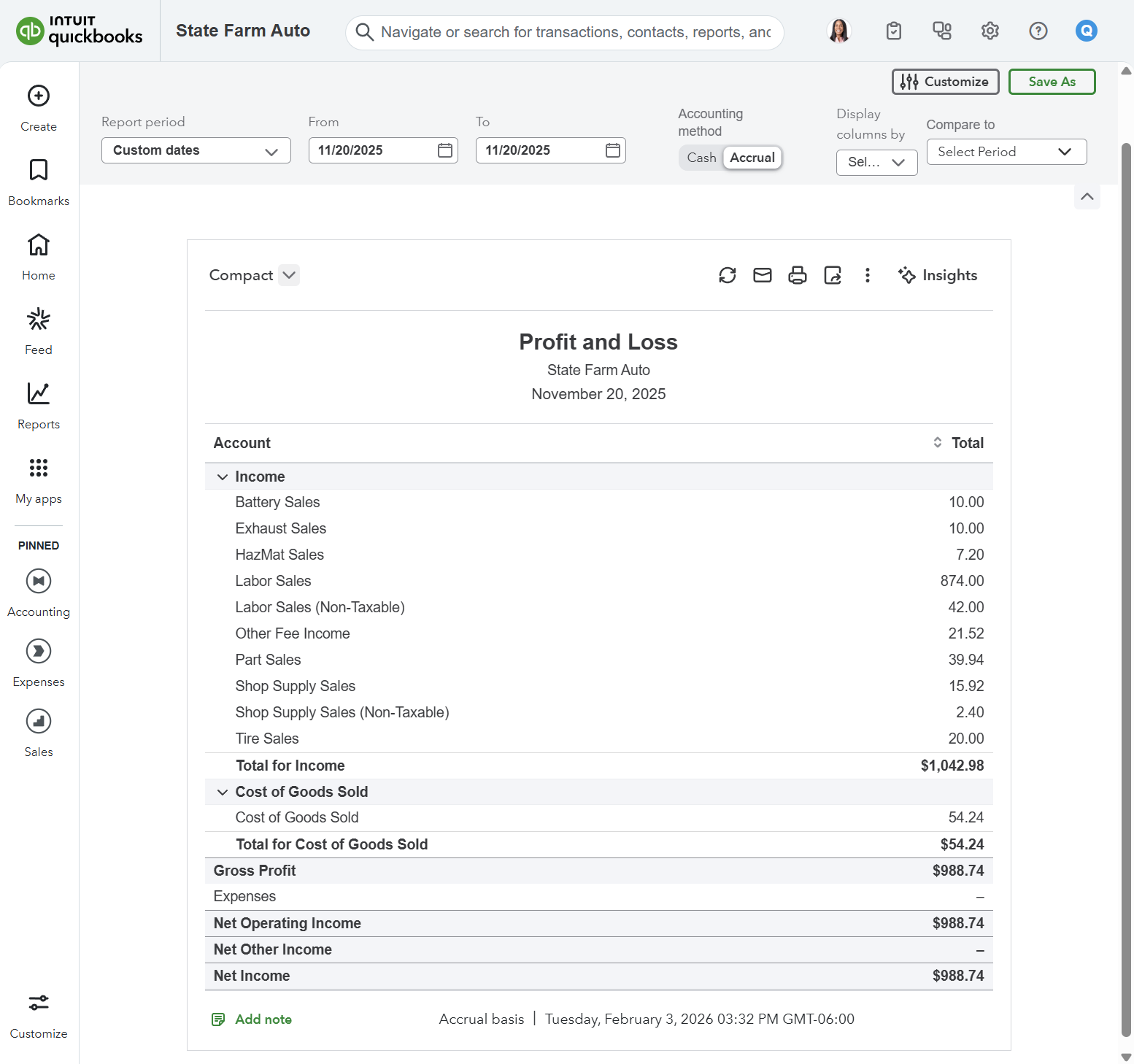
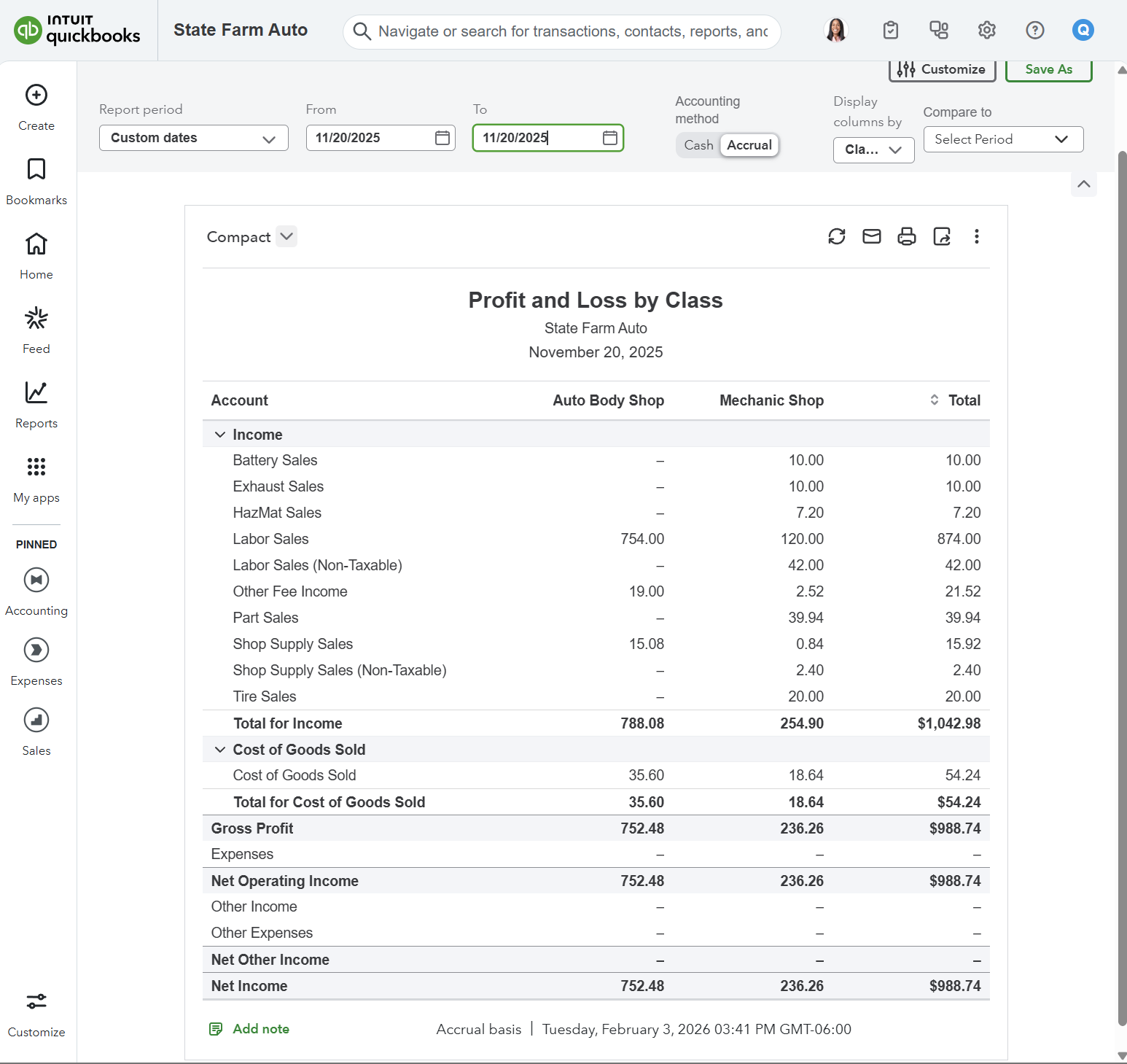
Below are three examples of Profit and Loss Reports. The first example is a simple report, the second includes categories and taxable breakouts, and the third offers a more detailed view with classes/locations, categories, and taxable status.
Example 1. Simple Profit & Loss Report
Example 2. Profit & Loss Report including Categories and Taxable Status Breakout
Example 3. Detailed Profit & Loss Report including Classes/Locations, Categories, and Taxable Status
Frequently Asked Questions
Will my Profit and Loss look exactly like one of these examples?
The Profit and Loss reports shown are examples that vary in complexity based on how Accounting Link is mapped. Every Profit and Loss report is unique; these examples are intended to demonstrate the range of possibilities available when mapping General Ledger accounts using Accounting Link. Accounting Link may also break out Profit Centers by class/location if your Shop Management System has Profit Center functionality.
How can I make sure Accounting Link supports the Profit and Loss reporting I need?
The Profit and Loss Report is populated with data being transferred from Accounting Link. If you want to break out accounts or add a class to financial data being sent, these updates can be configured directly within Accounting Link.

